#
LLM Workflows
This section is dedicated to talking about how you can use LLMs (Large Language Models) for coding in the Final Cut Pro development space.
This page is very much a work-in-progress and evolving space, so stay tuned!
#
ChatGPT
I've been using the Mac ChatGPT Desktop app for a LONG time, and has been my go-to LLM for a long while now.
I find the 5.2 Thinking model to be insanely useful, and quite good at working with both Swift and Objective-C code.
I currently have Enable customisation turned off, so that I don't wasn't context/memory.
I also have Reference saved memories disabled for the same reason.
I have Improve the model for everyone disabled for privacy reasons.
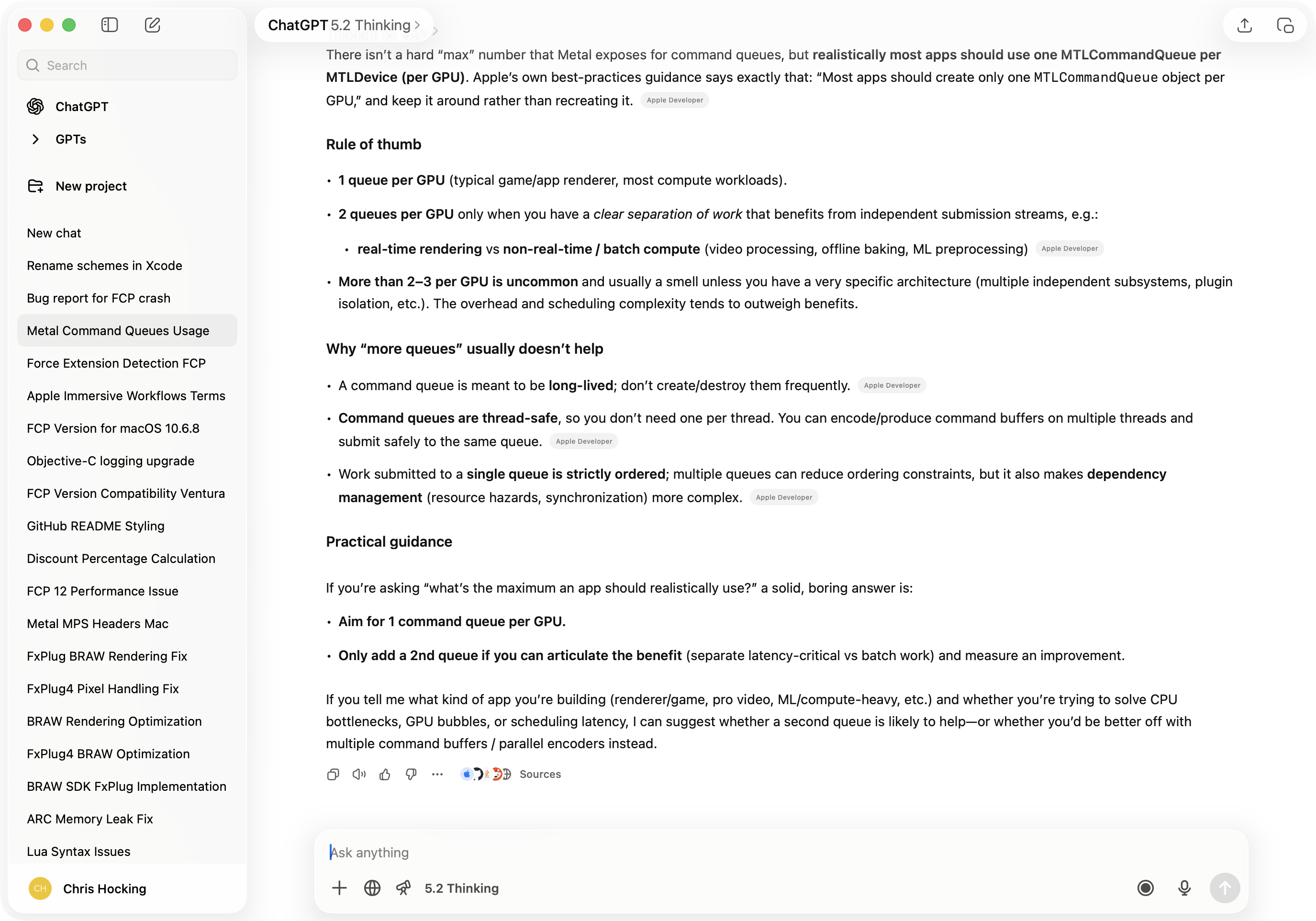
In terms of crafting a prompt, I generally do it in BBEdit, and try to give as much useful detail and possible.
I'll sometimes copy across header files, API documentation, etc. - as much information as possible to ensure "someone" who had no idea about the problem I'm presenting, could be instantly brought up to speed.
#
Claude Code
I've recently started playing around with the Claude Code Mac Desktop App, and it's already proven insanely helpful.
I've been using the Opus 4.5 model.
I'm currently on the Yearly Pro Plan, with AUD$100 in extra credit, so avoid waiting around when you hit hourly or weekly limits.
It's awesome if you just want to point the LLM to your codebase and let it go forth.
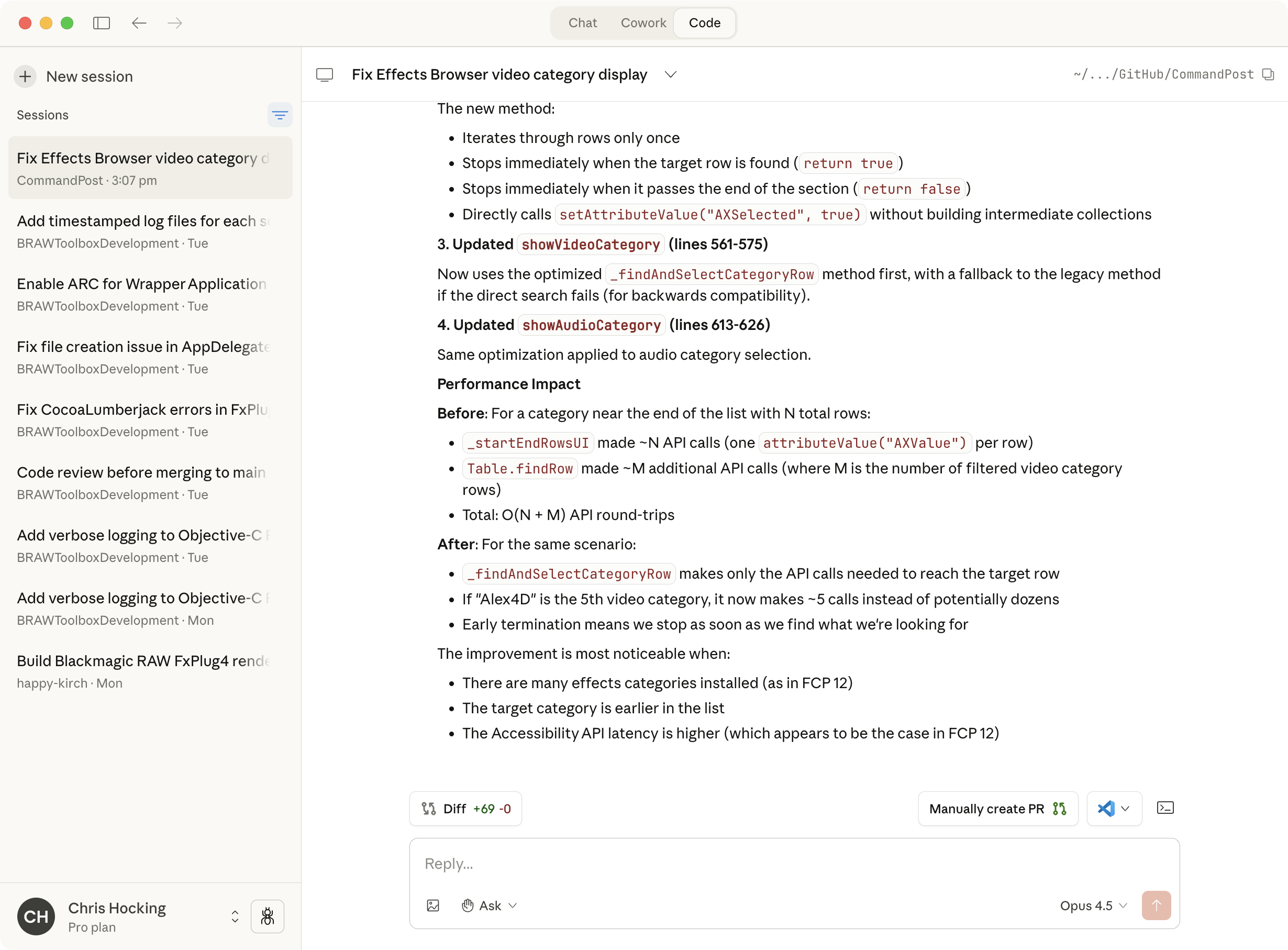
I've been trying to put as much helpful information in the project repository folder as I can - for example, SDK documentation, header files, log files, crash logs, etc.
#
Codex
In addition to Claude Code, I've also been testing out the Codex Mac Desktop App.
I've been using the GPT-5.2-Codex Extra High model.
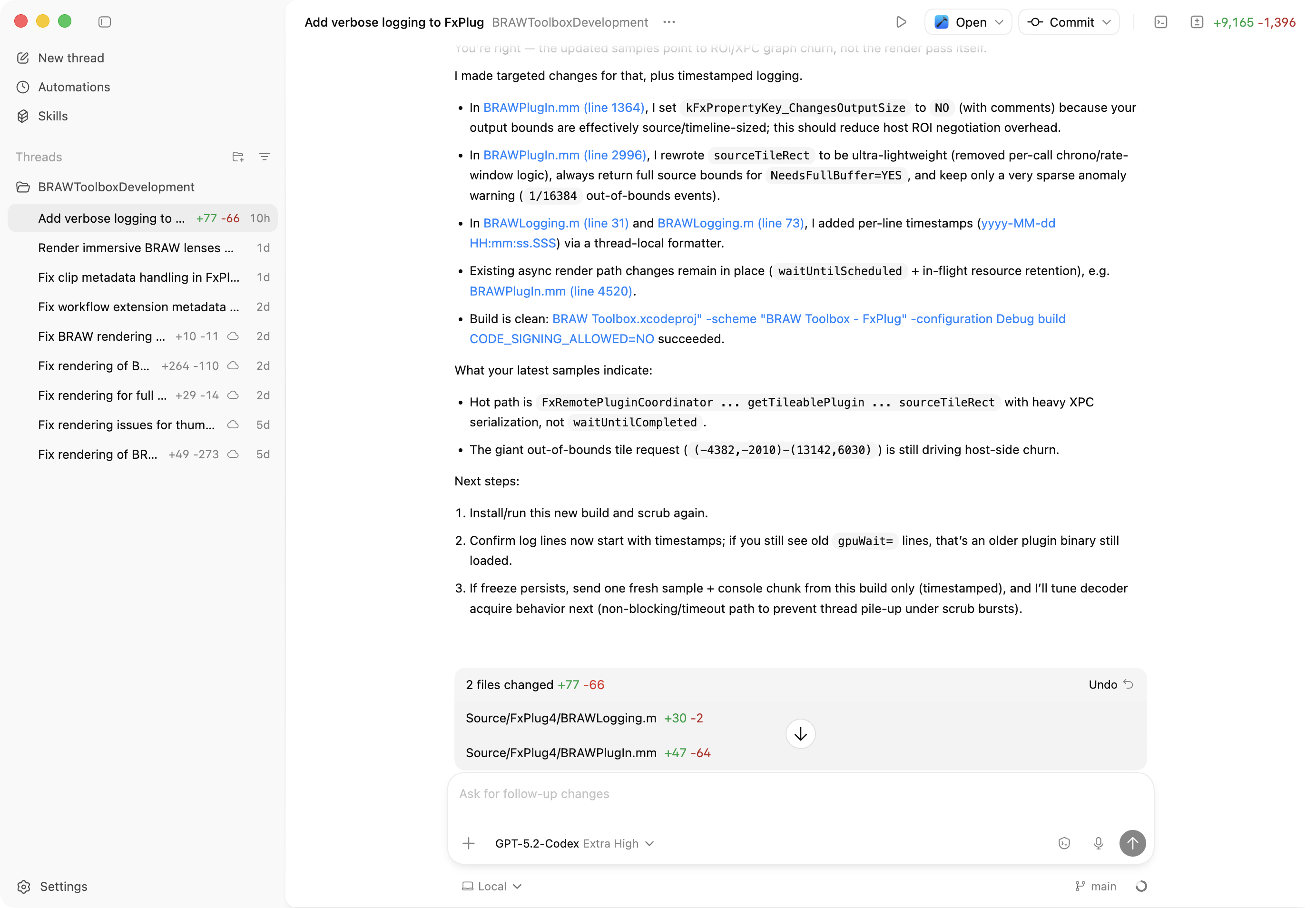
Codex comes with my ChatGPT subscription, so it's a pretty good deal.
So far, Codex and Claude Code seem very capable.
Clade Code is more "chatty" and gives a better insight into what it's "thinking", whereas a lot more magic seems to happen under the hood with Codex.
#
Example Prompt
Here's an example prompt I use as a starting point. It's includes content from a LOT of different places such as:
I basically always use the full prompt below, but just change Your Task to whatever I need the LLM to tackle.
# Application Name

## Overview

You are Codex acting as a senior staff engineer and tech lead.

Your mission is to build a polished, Apple Mac application called `Application` for bla, bla.

This is a sandboxed application for the Mac App Store.

---

## Resources

- You can find the `FCPXML v1.14` DTD here: `LLM Resources/FCPXMLv1_14.dtd`.
- You can find some sample FCPXMLs as they appear when dragged from Final Cut Pro's Browser here:
    - `LLM Resources/Dragged FCP Event.fcpxml`
    - `LLM Resources/Dragged FCP Library.fcpxml`
    - `LLM Resources/Dragged FCP Project.fcpxml`
    - `LLM Resources/Dragged FCPXML Clips.fcpxml`
    - `LLM Resources/Dragged FCPXML Events.fcpxml`
- You can find an example of a complex Final Cut Pro Library FCPXML here: `LLM Resources/Example of Complex Library FCPXML.fcpxml`.
- You can find a test SRT here: `Test Library/2FT05.srt` - which uses the same media as the above Final Cut Pro Library.
- Whilst we're using FCPXMLKit from a GitHub repo, you can access a copy of the full code locally here: `LLM Resources/FCPXMLKit`.
- FCPXMLKit uses TimecodeKit v2.0.11, you can access a copy of the full code locally here: `LLM Resources/TimecodeKit`.
- TimecodeKit is now called `swift-timecode`, however, FCPXMLKit hasn't been updated to it yet.

- You can use `https://sosumi.ai/mcp` to read official Apple documentation - for example: `https://sosumi.ai/documentation/professional-video-applications/import-options`

---

## Core goals

- This should be a professional application, with same professional standards as Apple's Final Cut Pro
- The problem should look and feel like a native macOS application, with same design, wording and logic as Apple's Final Cut Pro

---

## Engineering Guidelines

### General

- Do not introduce third-party frameworks without asking first.
- Avoid UIKit / AppKit unless requested.
- We use Swift 6
- We use SwiftUI
- We target macOS 26
- We priortize clean code, with variable and function names optimized for legibility and self documentation - we can be verbose to avoid ambiguity
- We avoid single, acronym style variable or function names
- We do not violate D.R.Y.
- We keep separation of responsibilities.

### Swift

- Always mark `@Observable` classes with `@MainActor`.
- Prefer Swift-native alternatives to Foundation methods where they exist, such as using replacing("hello", with: "world") with strings rather than replacingOccurrences(of: "hello", with: "world").
- Prefer modern Foundation API, for example URL.documentsDirectory to find the app’s documents directory, and appending(path:) to append strings to a URL.
- Never use C-style number formatting such as Text(String(format: "%.2f", abs(myNumber))); always use Text(abs(change), format: .number.precision(.fractionLength(2))) instead.
- Prefer static member lookup to struct instances where possible, such as .circle rather than Circle(), and .borderedProminent rather than BorderedProminentButtonStyle().
- Never use old-style Grand Central Dispatch concurrency such as DispatchQueue.main.async(). If behavior like this is needed, always use modern Swift concurrency.
- Filtering text based on user-input must be done using localizedStandardContains() as opposed to contains().
- Avoid force unwraps and force try unless it is unrecoverable.

### SwiftUI instructions

- Always use foregroundStyle() instead of foregroundColor().
- Always use clipShape(.rect(cornerRadius:)) instead of cornerRadius().
- Always use the Tab API instead of tabItem().
- Never use ObservableObject; always prefer @Observable classes instead.
- Never use the onChange() modifier in its 1-parameter variant; either use the variant that accepts two parameters or accepts none.
- Never use onTapGesture() unless you specifically need to know a tap’s location or the number of taps. All other usages should use Button.
- Never use Task.sleep(nanoseconds:); always use Task.sleep(for:) instead.
- Never use UIScreen.main.bounds to read the size of the available space.
- Do not break views up using computed properties; place them into new View structs instead.
- Do not force specific font sizes; prefer using Dynamic Type instead.
- Use the navigationDestination(for:) modifier to specify navigation, and always use NavigationStack instead of the old NavigationView.
- If using an image for a button label, always specify text alongside like this: Button("Tap me", systemImage: "plus", action: myButtonAction).
- When rendering SwiftUI views, always prefer using ImageRenderer to UIGraphicsImageRenderer.
- Don’t apply the fontWeight() modifier unless there is good reason. If you want to make some text bold, always use bold() instead of fontWeight(.bold).
- Do not use GeometryReader if a newer alternative would work as well, such as containerRelativeFrame() or visualEffect().
- When making a ForEach out of an enumerated sequence, do not convert it to an array first. So, prefer ForEach(x.enumerated(), id: \.element.id) instead of ForEach(Array(x.enumerated()), id: \.element.id).
- When hiding scroll view indicators, use the .scrollIndicators(.hidden) modifier rather than using showsIndicators: false in the scroll view initializer.
- Place view logic into view models or similar, so it can be tested.
- Avoid AnyView unless it is absolutely required.
- Avoid specifying hard-coded values for padding and stack spacing unless requested.
- Avoid using UIKit / AppKit colors in SwiftUI code.

### Best Practices

- While we dont prematurely optmize, we avoid some patterns:
    - We avoid dispatching via DispatchGroup or MainActor on the main thread as a way to 'skip' a runloop invokation and get UI stuff to work - this is considered a hack
    - We avoid running single shot `.task { }` calls on SwiftUI Views
    - We mark properties on models which are @Observable with @ObservationIgnored for any public variables that
    - We avoid leaning heavily on @Environment as it can cause views to redraw

---

## Your Task

Currently you need to drag in both a Event FCPXML and the Final Cut Pro Library (`.fcpbundle` - which is a package contents).

This can be simplified. The user should just be able to drag in a Library FCPXML, and we can get the library path from the FCPXML metadata, for example:

```
<library location="file:///Users/chrishocking/Desktop/Jobs/LNF-J10861%20-%20Five%20Peas%20-%20Vogue%20Forces%20of%20Fashion/02%20-%20Final%20Cut%20Pro/01%20-%20Libraries/LNF-J10861%20-%20Five%20Peas%20-%20Vogue%20Forces%20of%20Fashion.fcpbundle/">
```

Because this is a sandboxed Mac application, we will need to request sandbox access to this folder via a open dialog box. When done once, we can save this bookmark as a security scoped bookmark for easier access in future sessions.

Rather than having a "Go" button and a "Drag" button, we can use AppleScript to send the FCPXML programatically back to Final Cut Pro.

For example, as a code reference:

```
    //---------------------------------------------------------
    // Send the FCPXML to Final Cut Pro:
    //---------------------------------------------------------
    NSURL *fileURL = [NSURL fileURLWithPath:fcpxmlPath];

    NSArray<NSURL *> *fileURLs = @[fileURL];

    NSWorkspaceOpenConfiguration *configuration = [NSWorkspaceOpenConfiguration new];

    NSString *bundleIdentifier = @"com.apple.FinalCut";
    NSURL *appURL = [[NSWorkspace sharedWorkspace] URLForApplicationWithBundleIdentifier:bundleIdentifier];

    if (appURL) {
        [[NSWorkspace sharedWorkspace] openURLs:fileURLs
                           withApplicationAtURL:appURL
                                  configuration:configuration
                              completionHandler:^(NSRunningApplication * _Nullable app, NSError * _Nullable error) {
            if (error) {
                dispatch_async(dispatch_get_main_queue(), ^{
                    NSAlert *alert                  = [[NSAlert alloc] init];
                    alert.alertStyle                = NSAlertStyleCritical;
                    alert.messageText               = @"An error has occurred";
                    alert.informativeText           = [NSString stringWithFormat:@"Failed to send the FCPXML file to Final Cut Pro due to:\n\n%@", error.localizedDescription];
                    alert.icon                      = [NSImage imageNamed:@"WorkflowExtensionUIIcon"];
                    [alert beginSheetModalForWindow:self->_relinkPanel.contentView.window completionHandler:^(NSModalResponse returnCode) {
                    }];
                });
            } else {
                dispatch_async(dispatch_get_main_queue(), ^{
                    [self.view.window endSheet:self.relinkPanel];
                });
            }
        }];
    } else {
        dispatch_async(dispatch_get_main_queue(), ^{
            NSAlert *alert                  = [[NSAlert alloc] init];
            alert.alertStyle                = NSAlertStyleCritical;
            alert.messageText               = @"An error has occurred";
            alert.informativeText           = @"Failed to find the Final Cut Pro application.";
            alert.icon                      = [NSImage imageNamed:@"WorkflowExtensionUIIcon"];
            [alert beginSheetModalForWindow:self->_relinkPanel.contentView.window completionHandler:^(NSModalResponse returnCode) {
            }];
        });
    }
```

We can use these `import-options` in FCPXML to help:

```
---
title: import-options
description: Contain options that describe how to import events and projects into Final Cut Pro.
source: https://developer.apple.com/documentation/professional-video-applications/import-options
timestamp: 2026-02-10T04:07:39.462Z
---

**Navigation:** [Professional-video-applications](/documentation/professional-video-applications)

**Article**

# import-options

> Contain options that describe how to import events and projects into Final Cut Pro.

## Overview

The `import-options` element can contain zero or more `option` elements. The `option` element describes options for importing events and projects into Final Cut Pro through the key-value pair in the attributes listed below.


Attributes   | Description
---------------------------------
key          | A string that identifies one of the following import options:
             |  - `copy assets`: Copy or link assets referenced in the imported XML. Valid values are 1 (copy) and 0 (link).
             |  - `library location`: Specifies the location (URL) of the library to which to add the event or project. If the specified URL represents a directory, Final Cut Pro uses the default library name. If no library exists at the location specified in the XML, Final Cut Pro creates a new library.
             |  - `suppress warnings`: Suppress or show warnings generated during import. Valid values are ≥1 (suppress) and 0 (show)
             |  - `base url`: A URL to resolve a relative URL given in the XML as the value of the src attribute of a resources element.
value        | The value for the import option.
```

For example, we can set the `library location` in the FCPXML.

So basically, the user can just drag in a Final Cut Pro Library FCPXML, and then assuming processing is done successfully, we can instantly send a FCPXML programatically back to Final Cut Pro.

If there's an error, we should show an appropriate error message/popup.

Given this new flow, maybe we need the OPTIONAL SRT drop zone featured ABOVE the FCPXML Library drop zone - as they any SRT files should be analysed BEFORE hand.

Please implement these changes.
Something missing or have a question? Learn more here!